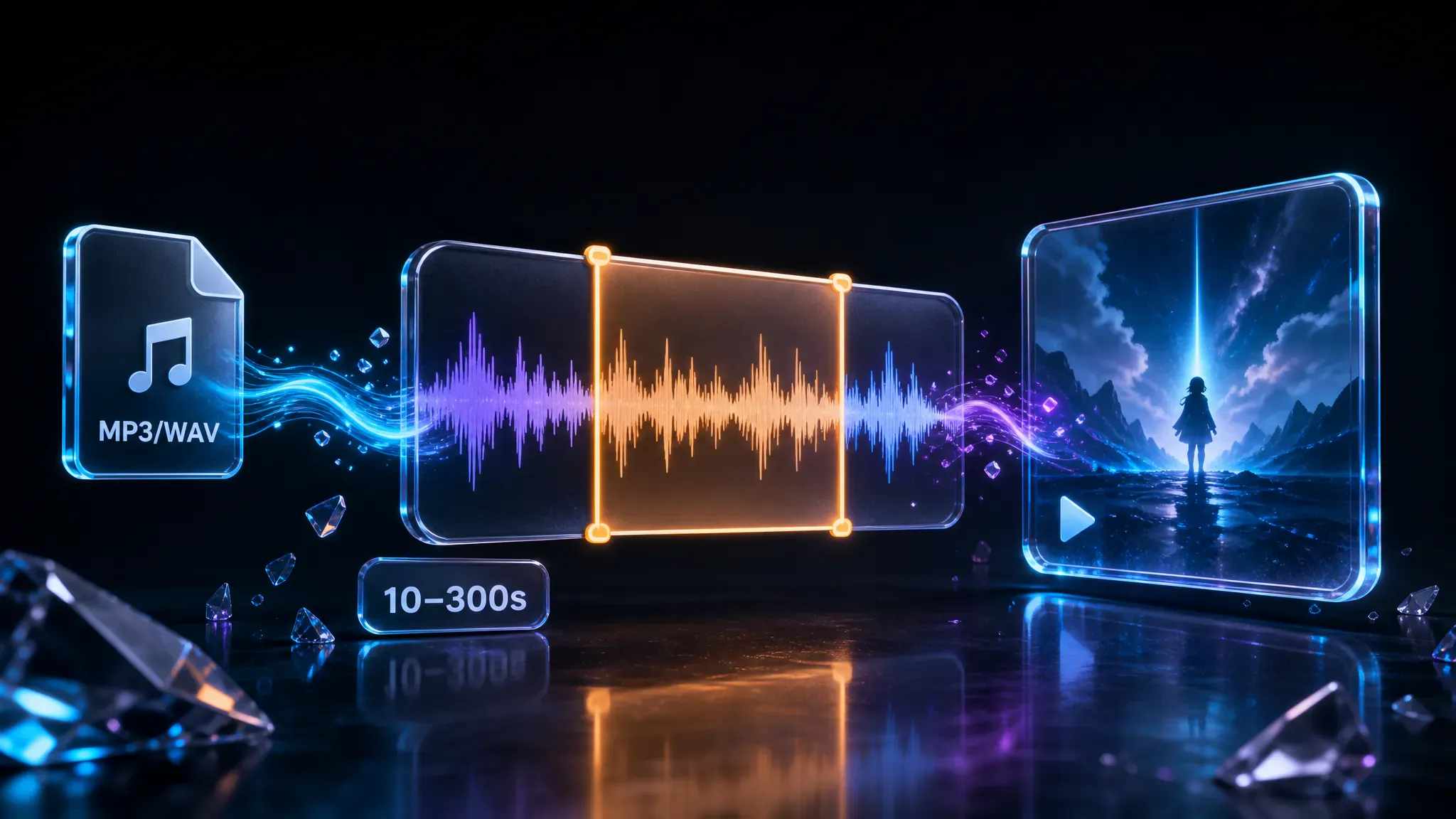
AI generate music video from your song
Bring in MP3, WAV, AAC, or M4A up to 50MB when you make music video with AI. Each job covers a 10–300 second window, so you generate only the section you need.
This AI music video generator turns a track from upload or My music into a platform-ready clip. Steer the look with references and a style prompt — no timeline editor required.
Capabilities you control in the tool — not a step-by-step walkthrough.
Bring in MP3, WAV, AAC, or M4A up to 50MB when you make music video with AI. Each job covers a 10–300 second window, so you generate only the section you need.
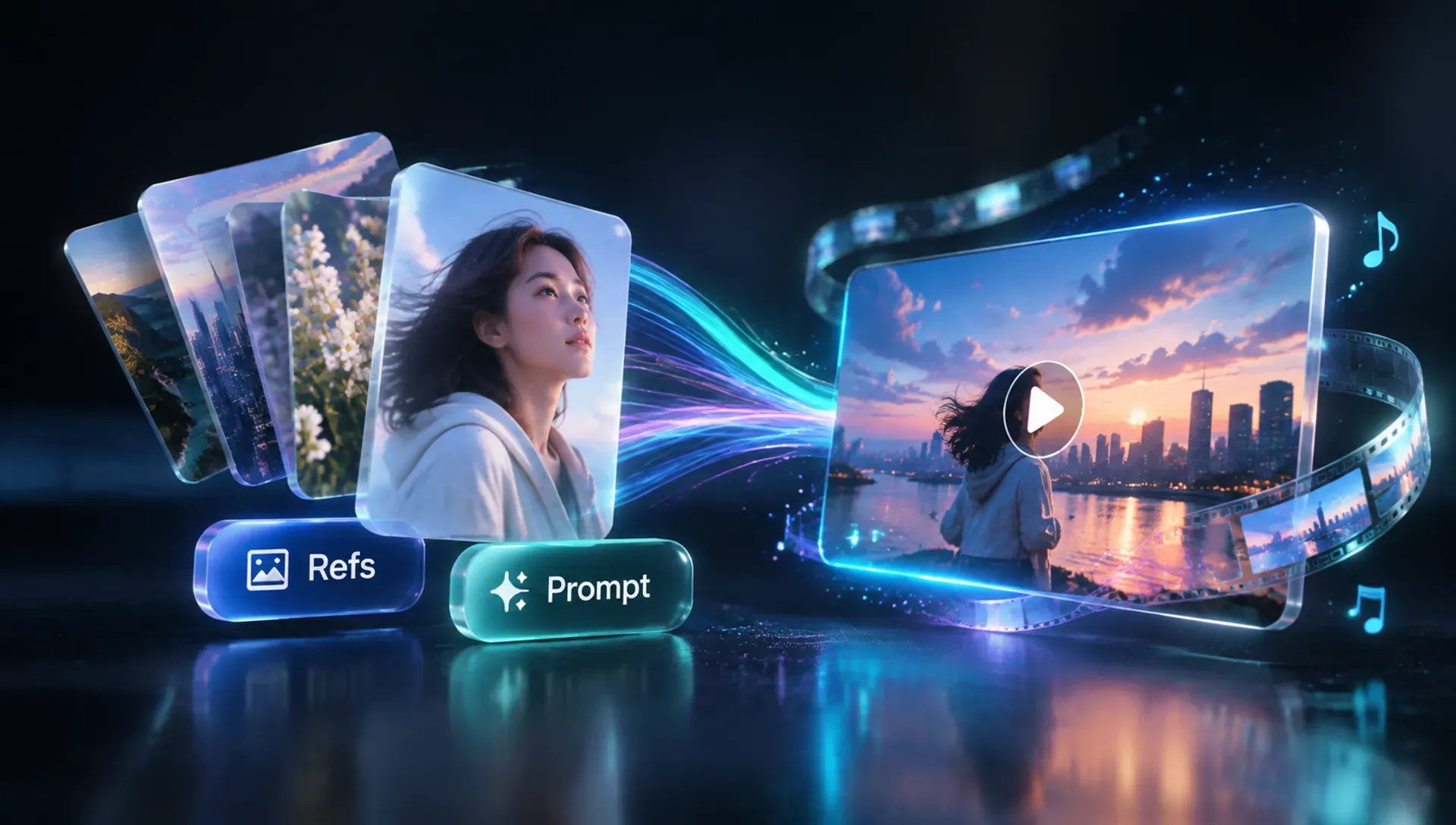
Add up to seven reference stills and write a style prompt of up to 3000 characters to guide scenes and mood, or tap Prompt Idea for sample wording.
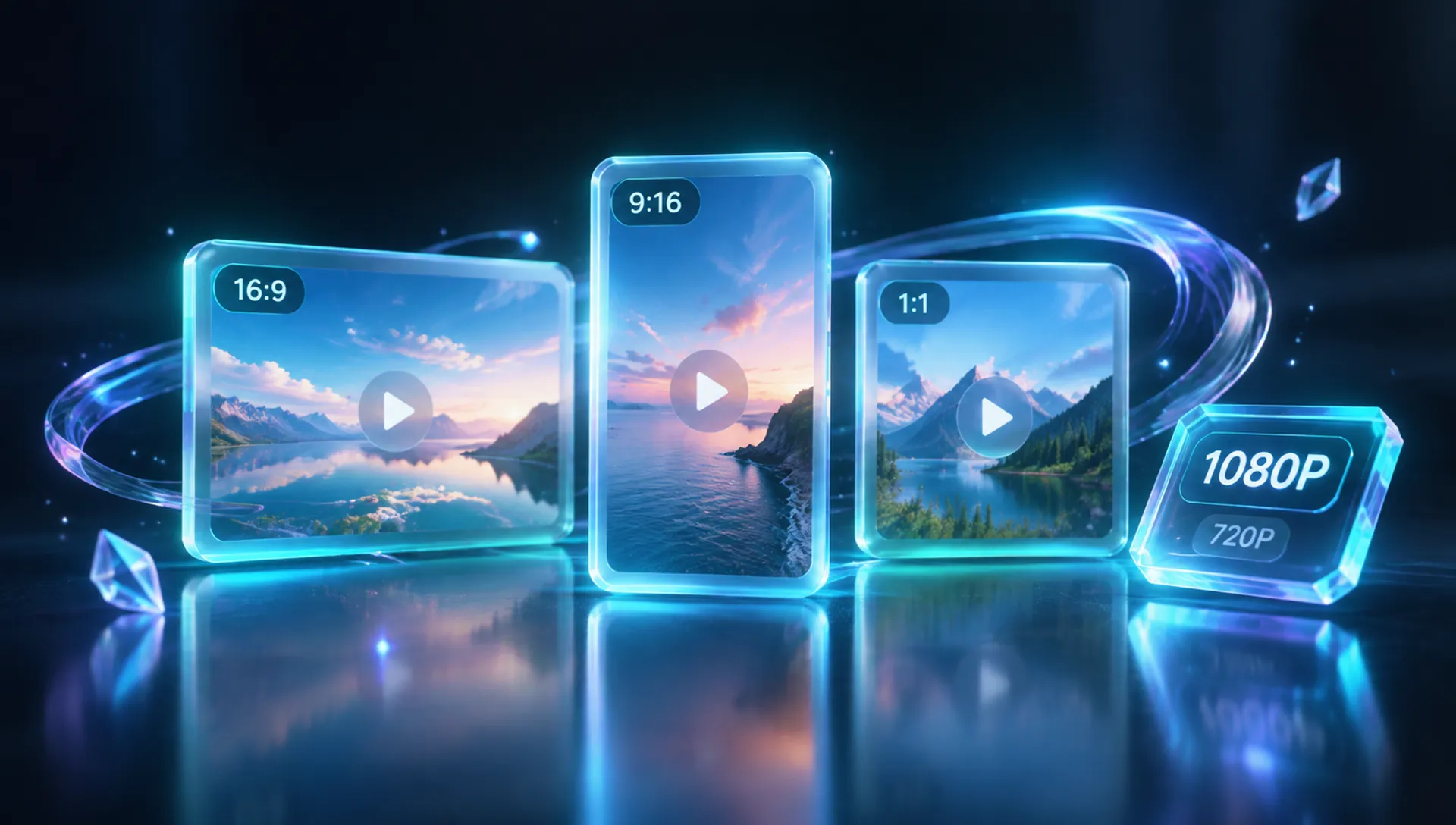
Choose 1:1, 16:9, 9:16, 4:3, or 3:4 and set resolution to 540P, 720P, or 1080P. Credits scale with duration times the selected quality.
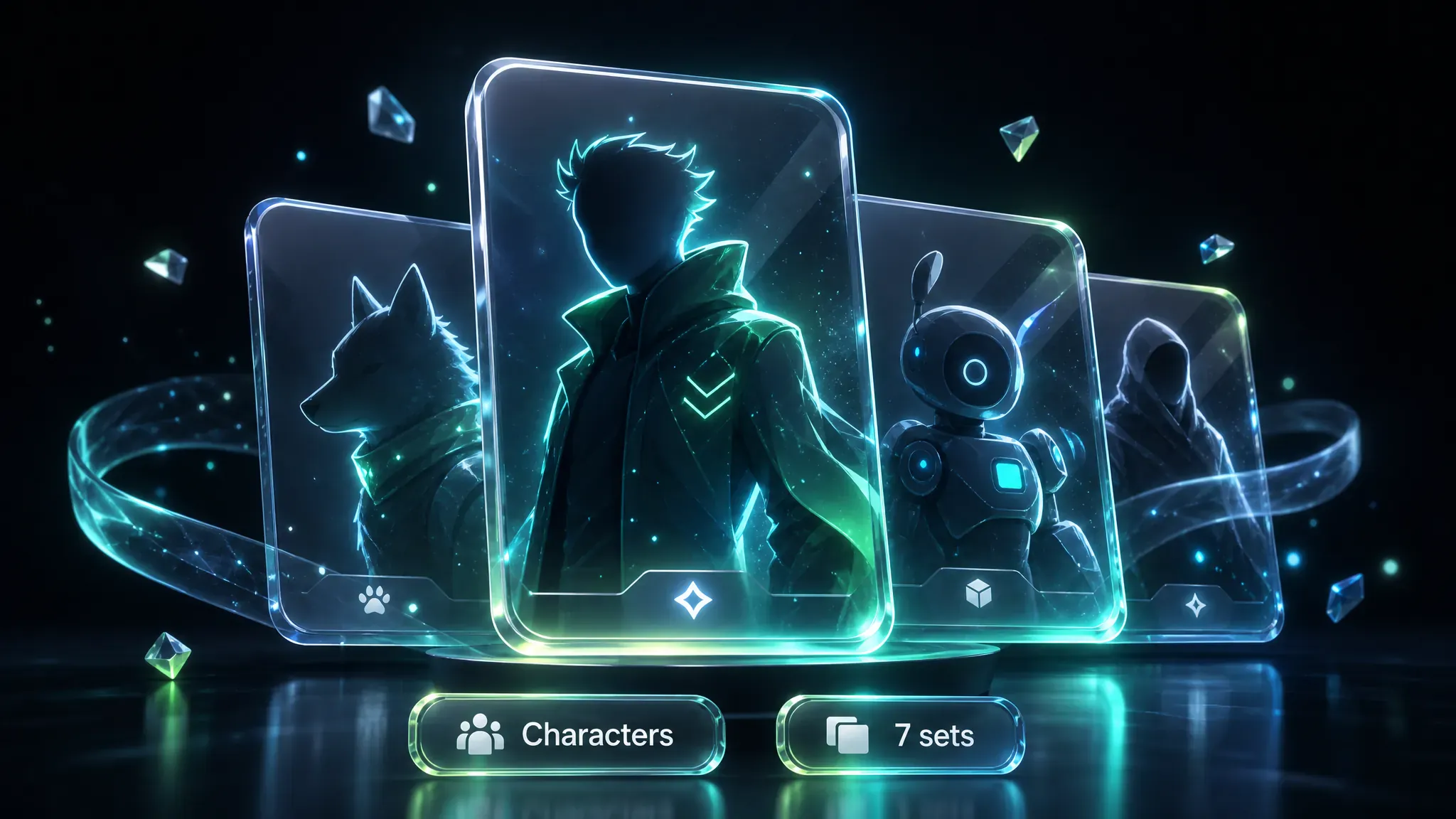
Browse character presets across seven sets — featured, women, men, boys, animals, landscape, and fantasy — and lock one look before you generate.
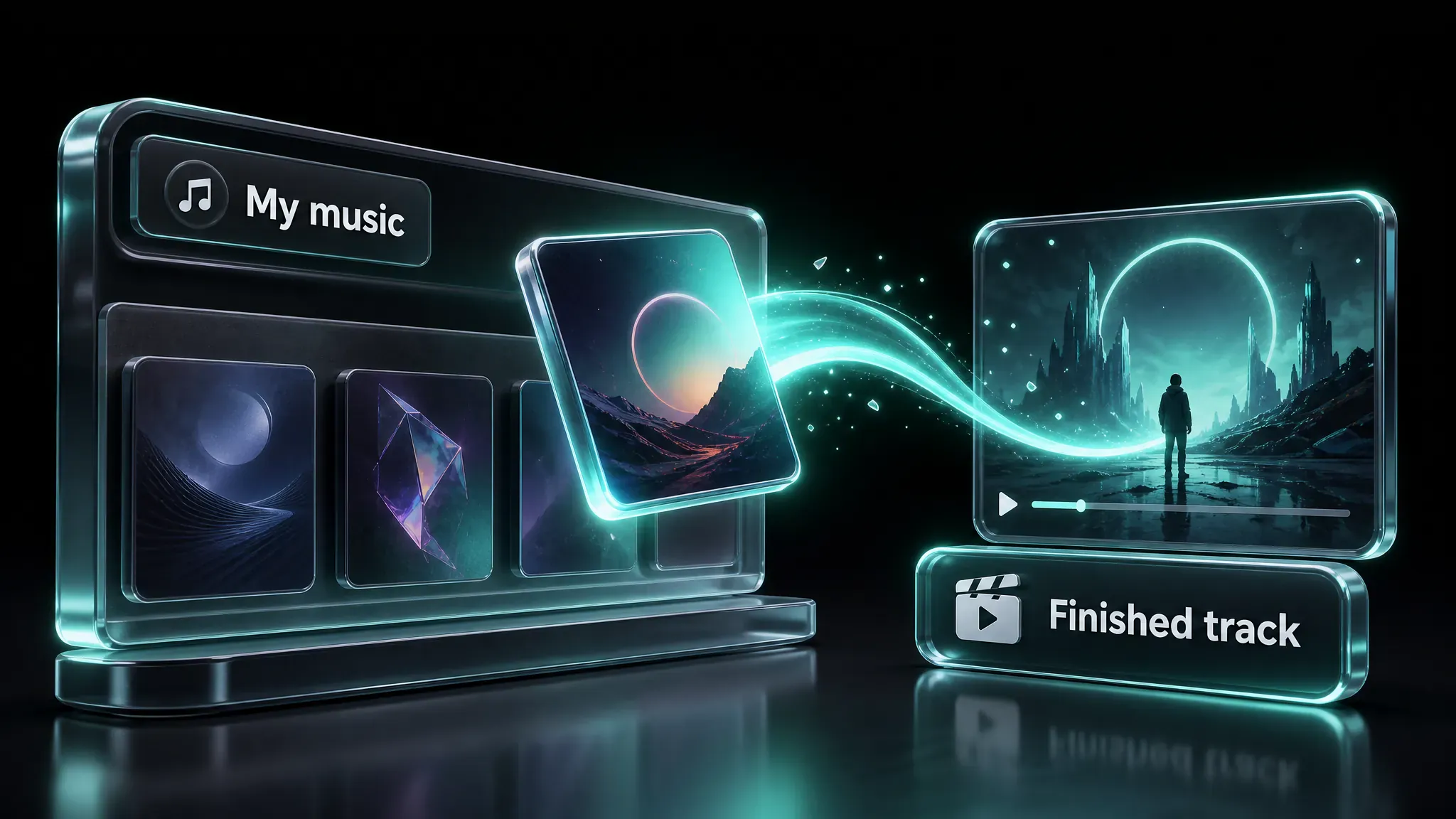
Tracks you already finished on MusGen stay available in My music, so there is no re-export step before a video job.
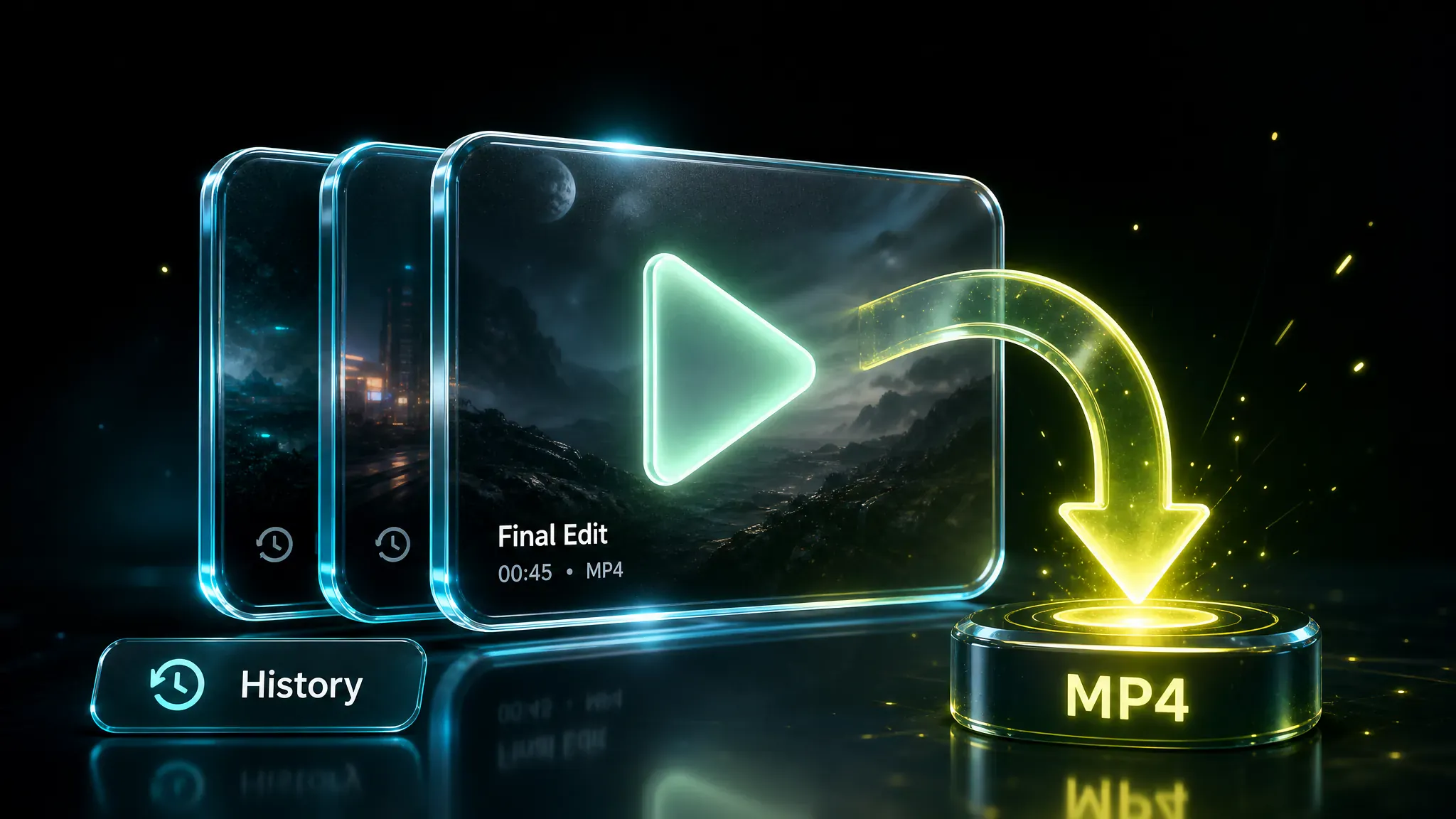
Every job stays in History. Reopen a finished clip in the preview player, download the MP4, or run another pass with different settings.
Sign in, then make music video online: add audio from upload or My music, trim to 10–300 seconds if needed, set references or a character plus style prompt, pick aspect ratio and resolution, then generate. Credits equal clip length times the chosen quality rate; track progress in History.
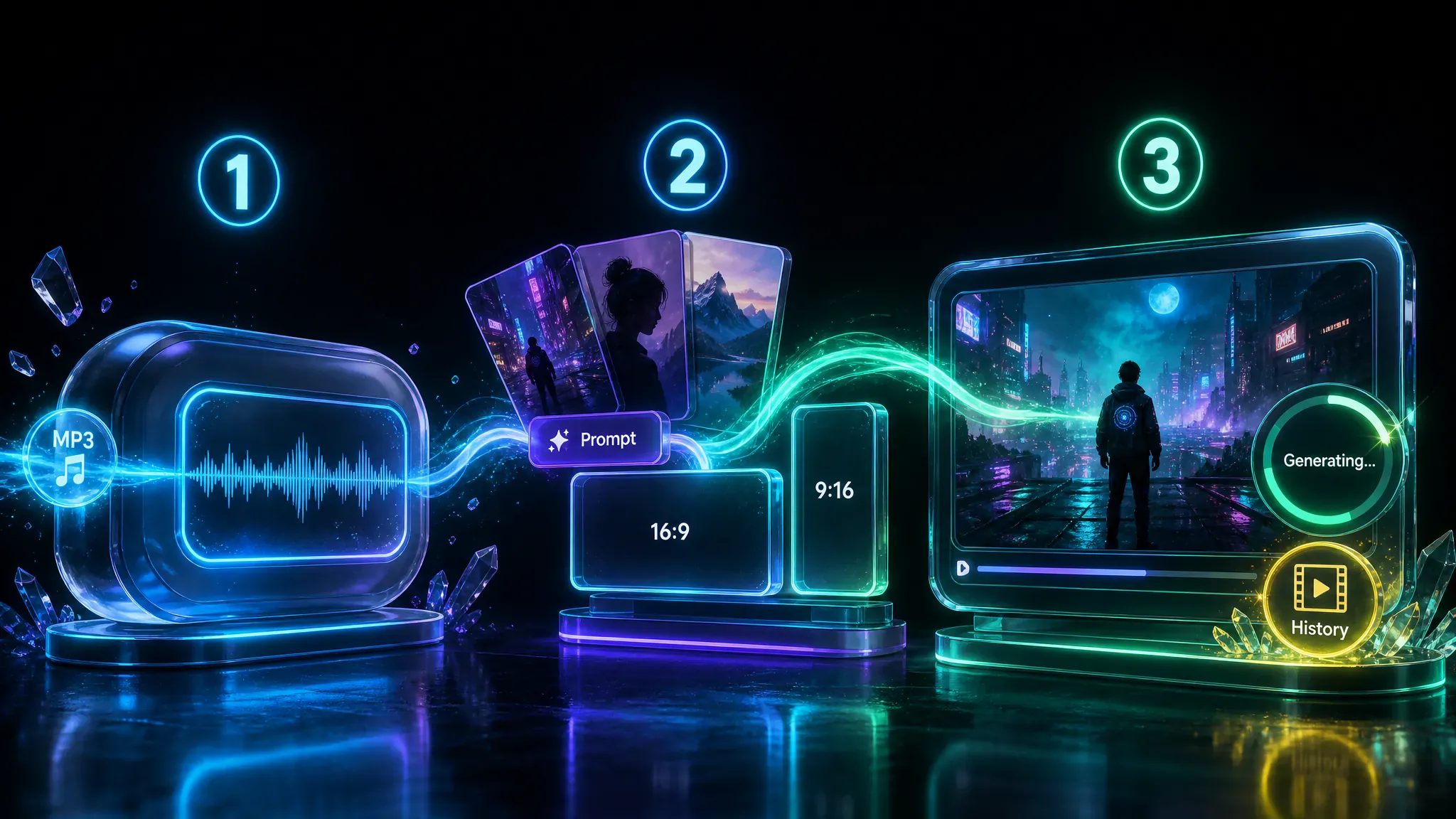
Real jobs this tool handles — who uses it, when, and what they walk away with.
Indie artists and songwriters can turn a finished track into a promo clip for social posts or a release page when hiring a crew is out of reach.
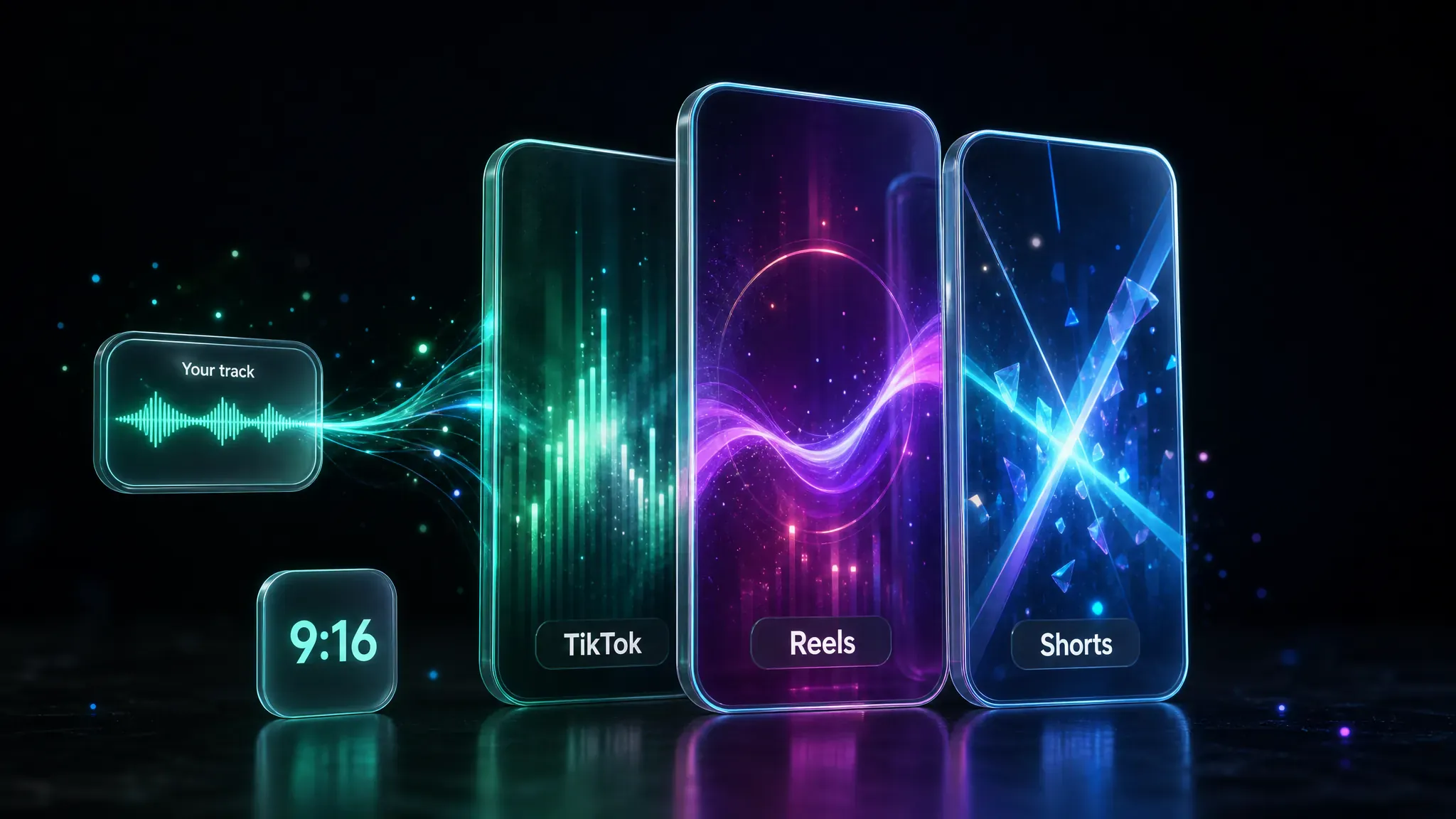
Social creators who already have audio can make short vertical music videos sized for feeds instead of shooting a new performance every time.
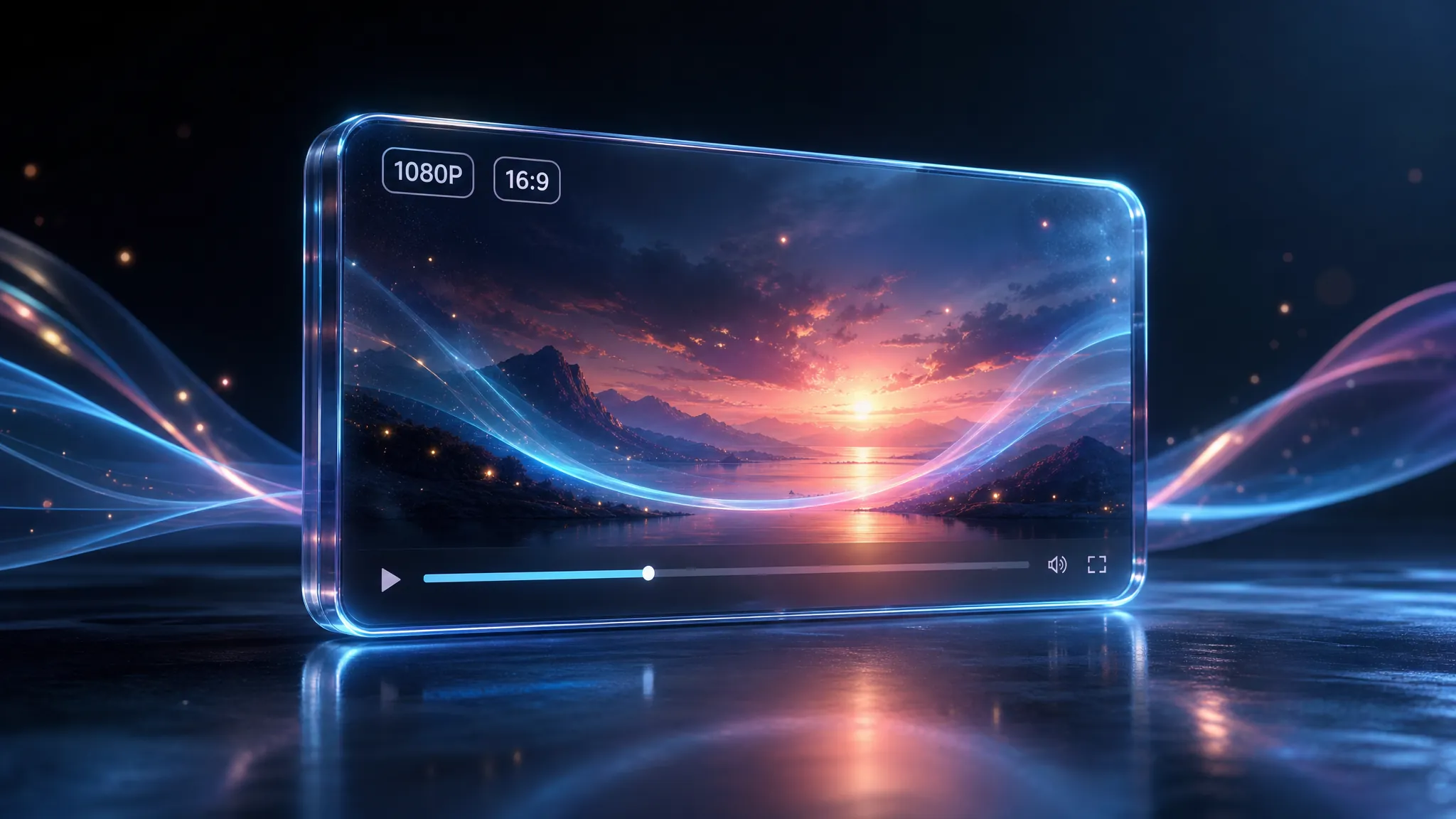
Channels that need a landscape visual for uploads or premieres can generate a performance-style or story-led clip from the same song — without claiming a separate lyric-sync editor.
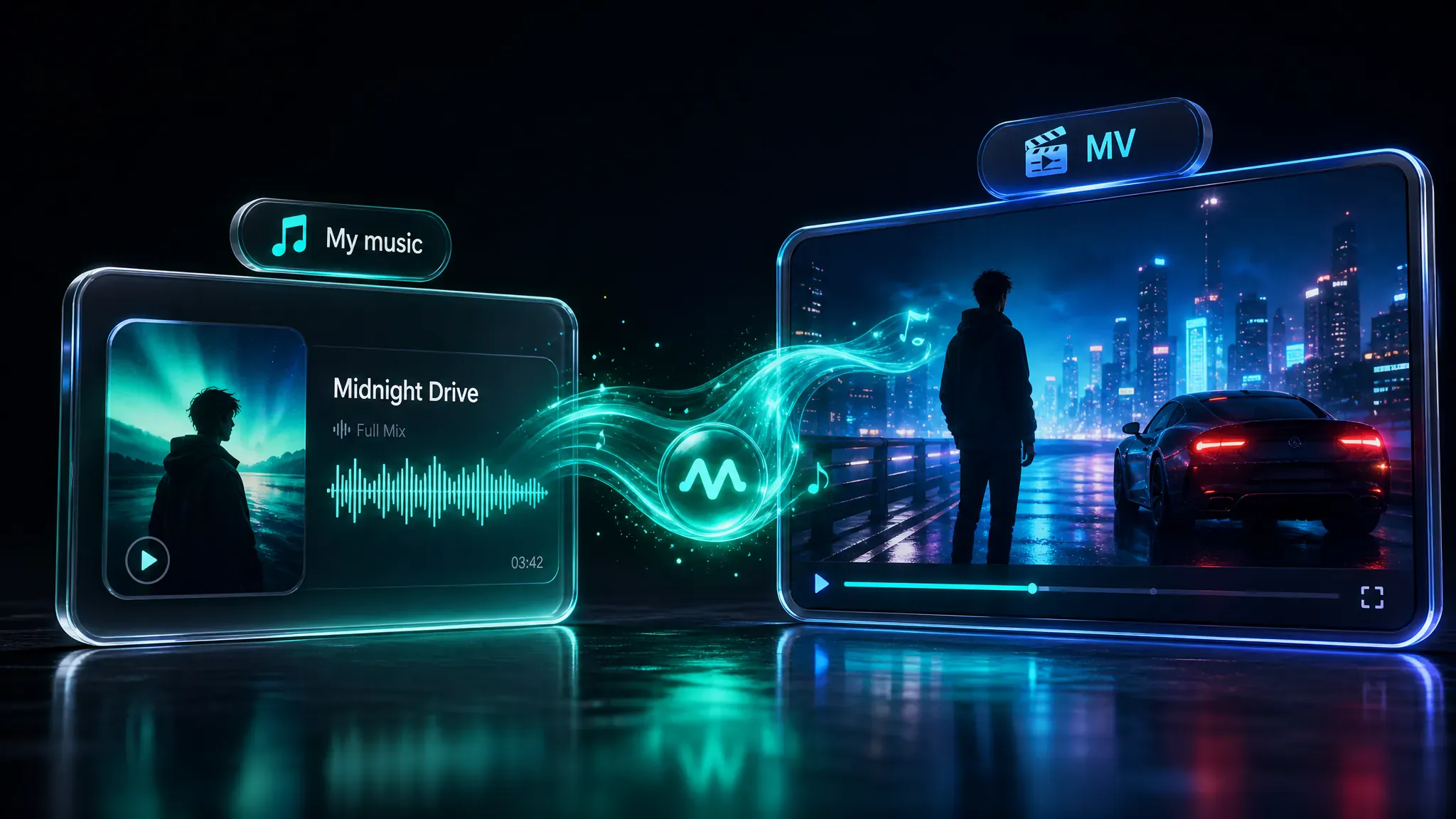
If you already generated a song in MusGen, pull it from My music and create a matching visual for the same release instead of exporting audio elsewhere first.
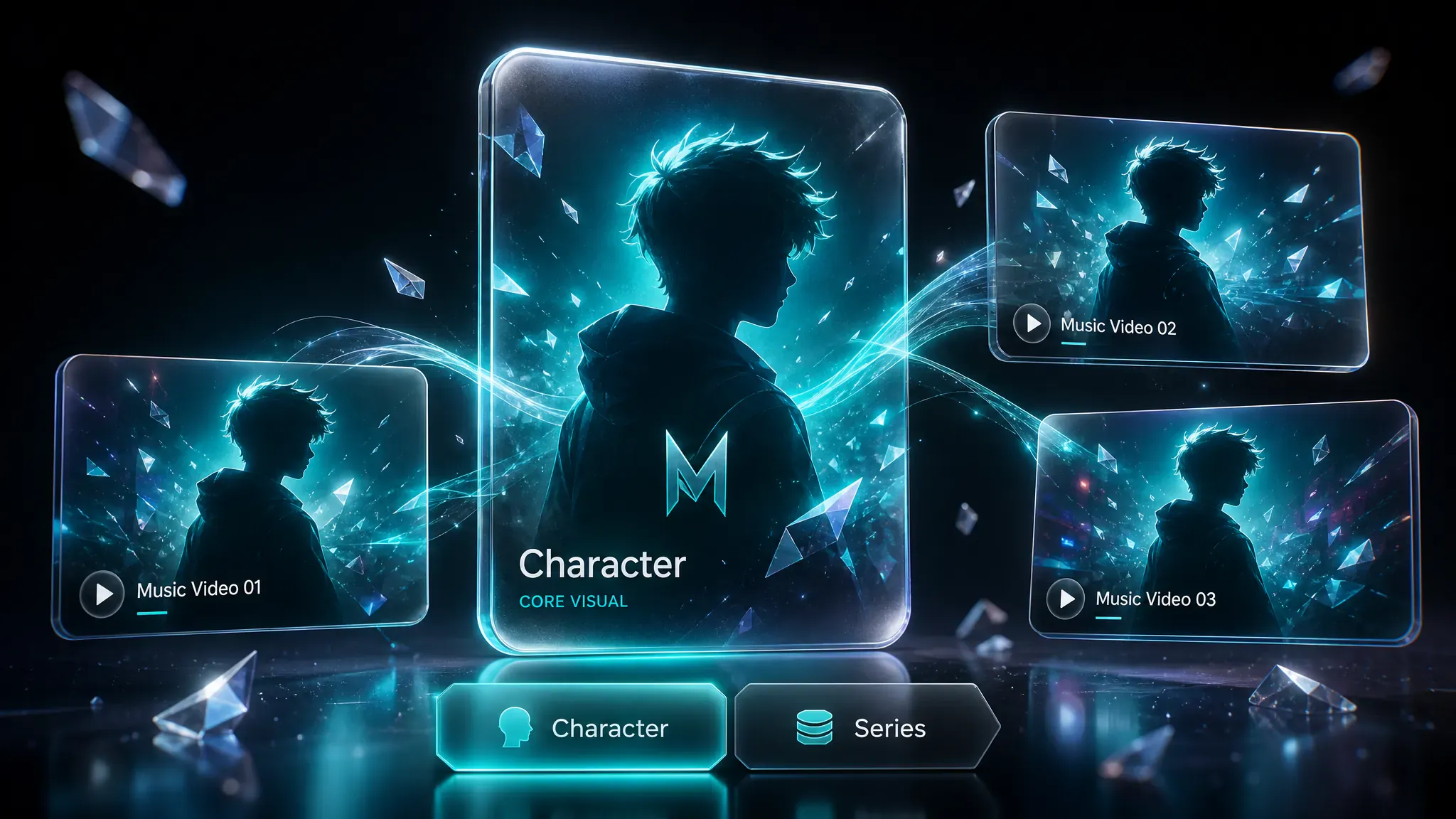
Creators shipping a series of clips can reuse the same character preset or brand stills so each clip feels like part of one visual line.
Practical reasons a music video creator would ship clips here instead of hiring a full shoot or learning a timeline editor.
How creators turn songs into clips with trim, references, and framing—not perfect every pass, but fast enough to ship a cutdown.
"Uploaded my MP3, trimmed to a 28s hook, set 9:16. First pass was too dark—rewrote the style prompt brighter and the second run was postable 🔥"

Reese Q.
"Pulled a finished track from My music and got a usable cutdown back in History."

Sora
"Dropped three brand stills plus a character preset, 16:9 at 720P. Character drifted a bit on pass one; same stills on pass two locked the look without opening a timeline editor."

Cam J
"Tried 1080P on a 90s window—credits stung. Trimmed shorter next time and kept 720P for social cutdowns."

Harper Lin
"Prompt Idea sample felt generic. Rewrote a neon night scene, generated vertical, posted the same day."

mv.trimdesk
"Reused one character preset across two clips for a mini series. Second clip still needed a prompt tweak for wardrobe consistency—fine for drafts, not a full shoot 🎬"

Ellis Prado
Credits, formats, framing, and how this tool differs from filming a video yourself.
Opening the tool is free, but you need to sign in before you can generate. Each generate uses credits based on clip length times the selected resolution rate. Some plans also have a daily job cap. There is no unlimited free, no-login plan.
Upload your audio or pick it from My music, trim to 10–300 seconds if needed, add references or a character and a style prompt, choose aspect ratio and quality, then click Generate.
Yes. Choose 9:16 or 3:4 for short-form vertical feeds, or 16:9 for landscape YouTube-style posts. Square 1:1 and 4:3 are also available.
No timeline editor is required. You set audio, visual guidance, and output settings, then generate. This is not a CapCut-style multi-track cut tool.
An AI MV maker here is just another name for this tool: an online generator that turns your song into a generated clip using references, prompts, and platform framing — not a separate product.
Aspect ratios: 1:1, 16:9, 9:16, 4:3, and 3:4. Resolutions: 540P, 720P (default), and 1080P. Higher quality and longer clips use more credits.
Each generate covers a 10–300 second window. Longer source files must be trimmed before you submit.
Yes. Add up to seven reference images, pick a character preset, and write a style prompt — for example, a neon city night scene or a soft spotlight stage look. Prompt Idea can fill sample wording.
Yes. Upload MP3, WAV, AAC, or M4A up to 50MB, or select a track from My music. Generation requires login and enough credits for the duration and resolution you pick.
Create music video online from a song you already have — trim the hook, set the look, pick framing and quality, then generate.
Start in the music video tool