
Vocal-conditioned accompaniment
Generate a backing track that follows your vocal timing and phrasing from an uploaded or library vocal. Style and mood guide the arrangement; there is no separate Key or BPM control.
Use Add Instrumental to Vocals to build an AI backing track generator for vocals around a take you already have. Upload MP3/WAV or pick a library vocal, set style tags, then keep vocals or export backing only.
Add backing music to your vocals
Upload a cappella or a vocal track. AI matches the mood, adds drums and harmony, and keeps the phrasing intact.
MP3 or WAV, up to 8 minutes. If this vocal was uploaded before, use Advanced upload and wait for the clip to be ready.
Advanced upload
Required when the vocal already exists in the catalog. This returns a clip ID instead of a file URL.
Speed rate
If validation fails, try a lower rate (e.g. 0.8x) and re-upload. Original speed is always restored.
Please only upload audio you own or are licensed to use. If upload validation doesn't pass, your credits will be returned automatically.
Saved references
Reuse a previously uploaded reference audio.
Cost: 3 credits · Charged when the task is created successfully. Estimated generation time: 1–2 minutes.
Build accompaniment around your vocal—not extract it from a finished mix—with style guidance and two clear output modes.
Generate a backing track that follows your vocal timing and phrasing from an uploaded or library vocal. Style and mood guide the arrangement; there is no separate Key or BPM control.

Steer drums, harmony, and arrangement with style presets or free text. Optional Give me inspiration fills sample style and lyrics ideas for a faster first pass.
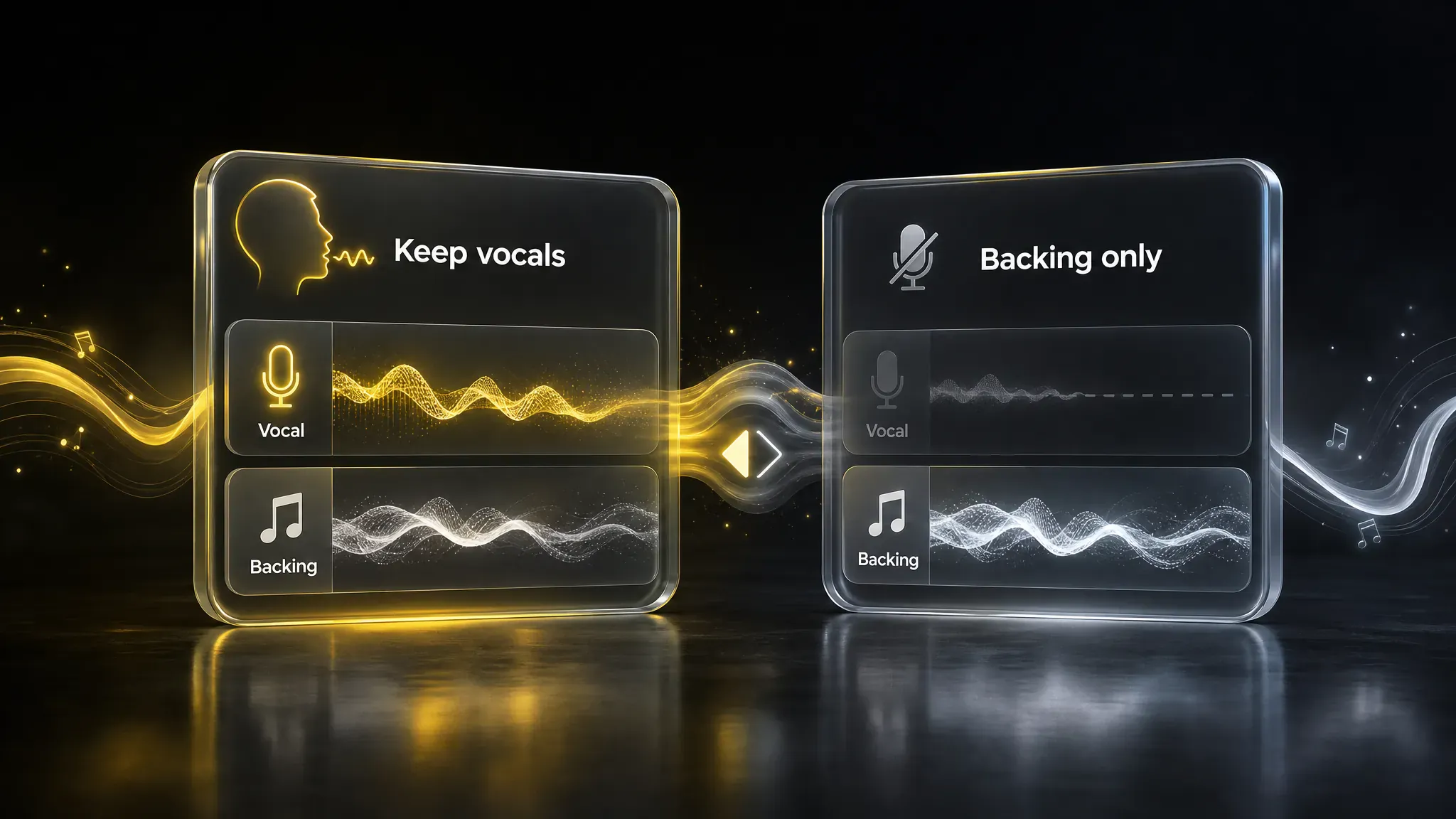
Return a full mix with your vocal plus new backing, or export an instrumental backing track without vocals. Optional lyrics are available when Keep vocals is on.
Upload an MP3 or WAV vocal (or pick one from My library), choose Instrument/Style tags, then pick Keep vocals + backing or Backing only. Sign in and spend 3 credits to generate. Most jobs finish in about 1–2 minutes; open results or this page’s History when ready. Style tags guide the arrangement—they do not lock exact Key or BPM.

Practical ways singers, rappers, and producers turn dry vocals into fuller demos—or export backing only for mixing.

Turn a cappella into a full song with AI backing, add instrumental to voice memo takes, or create a custom backing track for a vocal demo before a full session.

Add a rap beat to a spoken word vocal or dry rap take without rebuilding the performance. Style tags steer hip-hop, trap, or sparse electronic beds.

Generate an instrumental backing track without vocals when you want stems for a DAW, alternate mixes, or further arrangement work.

A/B piano style backing to vocals, acoustic guitar style backing for vocals, lo-fi backing on a vocal recording, or a rock band instrumental on the same vocal before you commit.

After you isolate a dry vocal stem, generate a fresh arrangement underneath it. This page creates new accompaniment—it does not pull an instrumental out of a finished mix.
Built for vocal-first demos: clear inputs, style steering, and two output modes with a stated credit cost.
How creators may use upload, style tags, and output modes in a session—not perfect every time, but clear enough to keep demos moving.
"Uploaded an a cappella and kept vocals on. First pass felt busy, so I swapped the style tags and the second backing sat better under the phrasing."

"Voice memo plus piano style—usable draft, still needed my own EQ pass."

"Dropped a spoken-word take under a trap-leaning style. Groove followed the lines, but the 808 crowded the midrange a bit 🔥"

"Chose Backing only, left lyrics empty, and pulled an instrumental into my DAW. Took a couple minutes after the 3-credit submit—cleaner than building a scratch bed from scratch."

"Same vocal, Inspiration for lo-fi then rock. Third pass was the keeper 🎙️"

"Used a dry stem after separation and generated a new arrangement—not an extracted instrumental. Backing was solid, still needed EQ before a client send."

Straight answers on uploads, credits, output modes, timing, and how this differs from Vocal Remover.
Add Instrumental to Vocals is MusGen’s tool for generating new backing around a vocal you already have. Upload an a cappella or vocal track, set style tags, and create accompaniment—unlike Vocal Remover, which extracts parts from a finished mix.
Upload an MP3/WAV vocal or pick one from My library, enter a title, choose Instrument/Style, pick Keep vocals + backing or Backing only, then generate after login. Optional lyrics are available when you keep vocals.
You can use Add Instrumental online after you log in and have credits. Each successful generation costs 3 credits. Online Free in the title means you can try with available credits—not unlimited free downloads or commercial rights.
Yes. Choose Backing only in output options to return the new instrumental without your vocal. Use Keep vocals + backing when you want a full mix.
The model aims to generate backing that follows your vocal timing and phrasing from the reference audio. There is no separate Key or BPM lock control—results vary with the clarity of your take and the style you choose.
Upload an MP3 or WAV vocal audio file up to 50MB, with reference audio up to 8 minutes. Clean a cappella, rap, or spoken-word takes work best. You can also select a vocal from My library.
It depends on your workflow. MusGen Add Instrumental is built for vocal-conditioned demos with style tags and Keep vocals / Backing only modes. Compare credit cost, output quality, and whether you need extraction tools instead.
No. Add Instrumental creates new backing under your vocal. Vocal Remover and Stem Splitter separate parts from an existing mix. Use extraction tools when you need stems; use this page when you need a new arrangement.
AI accompaniment for sung melodies here means generating drums, harmony, and arrangement around a sung or spoken vocal reference you provide—guided by style tags—not a free-standing practice track with no vocal upload.
Yes. Style tags can steer piano style backing, acoustic guitar style, lo-fi backing, or a rock band instrumental on the same vocal. Tags guide mood and arrangement; they are not separate instrument-only controls.
Open the tool above, add a vocal, set a style, and generate when you are logged in.
Start adding instrumental